Short answer: Google Shopping feed optimisation means fixing the product data Google uses to match your products to searches: titles first, then identifiers (brand, GTIN, MPN), product category, and the attributes shoppers filter by. Custom labels come last, to support campaign structure. Titles carry the most weight, because they decide which searches a product enters.
Most Shopping campaigns run on feed data nobody has checked since Merchant Center accepted the first upload. This is the order I work through a feed in, by impact, not in the order Merchant Center asks for the data. There is a 30-minute audit table near the end if you want to check your own feed first.
Why feed quality is the actual bottleneck for Shopping and PMax performance
Two patterns make feed optimisation more important now than it was three years ago.
The first: PMax has shifted Shopping from a manually controlled bidding environment to an algorithmically targeted one. Standard Shopping lets you bid per product group and see every search term. PMax now offers campaign-level negative keywords and search term reporting, but still no per-product bids. PMax reads your titles, descriptions, categories, attributes and identifiers to decide which queries to enter and which ads to assemble. So the feed remains the main lever: bad feed data produces bad targeting that bidding cannot fully correct.
The second: Google’s product matching has become more aggressive. Products with weak attribute data still show on broader queries but show on the wrong queries. A product titled “Premium Bluetooth Earbuds” with no brand, no GTIN, no model number, and miscategorised under “Electronics > Audio” will appear in searches for everything from premium audio to bluetooth speakers to wireless earbuds. None of those traffic sources convert at the rate the product actually deserves because the targeting is fundamentally confused.
For most Shopify ecommerce accounts, fixing the feed produces more performance lift than any single campaign-level change. It’s also the most under-invested area of optimisation because it’s not exciting work and the impact takes 7-14 days to show up in the data. Feed work like this sits inside ongoing ecommerce account management.
The title structure framework
Most content on Shopping feed optimisation focuses on writing better descriptions. The actual impact is in titles.
Titles are what Google matches against search queries. Descriptions are read but are weighted much less heavily for matching. Operators who spend time writing rich descriptions and leave titles as the product name pulled from Shopify are optimising the wrong layer.
The structure for ecommerce product titles in 2026:
Brand + Product Type + Key Attributes + Identifier
Examples of what this looks like in practice:
Bad: “Premium Performance Sneakers” Good: “Nike Air Max 90 Men’s Running Shoes Black White Size 10”
Bad: “Wireless Bluetooth Headphones” Good: “Sony WH-1000XM5 Wireless Noise Cancelling Over-Ear Headphones Black”
The good versions contain four elements: brand (Nike, Sony), product type (Running Shoes, Headphones), key differentiating attributes (Air Max 90, Black White Size 10; WH-1000XM5, Noise Cancelling, Over-Ear), and where applicable, the model identifier.
Why this works: customers search using brand + product type + attribute combinations. “Nike running shoes men’s size 10” matches the good title cleanly. The bad title matches the same query weakly because Google has to infer that “Premium Performance Sneakers” might be Nike (it isn’t necessarily) and might be men’s size 10 (no information either way).
Length matters less than completeness. Google’s title field accepts 150 characters. Use 80-130 for most products. Front-load the most important elements (brand, product type) because Shopping ads truncate long titles.
Title structure varies by product category:
| Category | Title formula | Example |
|---|---|---|
| Apparel | Brand + Garment type + Gender + Colour + Size + Material (if distinctive) | Nike Air Max 90 Men’s Running Shoes Black White Size 10 |
| Electronics | Brand + Model number + Product type + Key specs | Sony WH-1000XM5 Wireless Noise Cancelling Headphones Black |
| Home and garden | Brand + Product type + Key attributes + Size or dimensions | Brand Linen Duvet Cover Queen 210 x 210 cm Natural |
| Beauty and skincare | Brand + Product name + Type + Size + Key variant | Brand Hydrating Face Moisturiser SPF 30 50 ml |
| Food and beverage | Brand + Product name + Flavour or variant + Pack size | Brand Cold Brew Coffee Concentrate Vanilla 1 L |
The pattern is consistent: brand and product type first, distinguishing attributes next.
Required and recommended attributes that actually move performance
Google Merchant Center has a long list of attributes that products can have. Most operators jump to custom_label_0 because it’s where campaign segmentation happens. The free performance wins are in fields that are often empty on imported feeds.
GTIN (Global Trade Item Number). The unique product identifier (usually a barcode). If you sell branded products that have GTINs, this should be populated. Feeds missing GTINs on products that genuinely have them get reduced traffic because Google can’t match them against its product catalogue confidently. Check this field on every branded product before doing anything else.
Brand. The manufacturer or brand name. This should be filled whenever it exists. Custom-branded products from your own line should use your brand name. Reseller catalogues should use the actual brand of each product. Missing brand data hurts matching on branded queries.
MPN (Manufacturer Part Number). For products with both GTIN and MPN, fill both. For products with only MPN (some industrial or specialty products), MPN alone is acceptable when GTIN doesn’t exist.
Identifier Exists. For products that legitimately don’t have GTIN/MPN (custom one-off products, vintage items, made-to-order goods), set this field to FALSE explicitly. Only set it when you are certain no identifier exists: Google flags products with a warning if you set it to false when an identifier does exist.
Condition. New, used, or refurbished. Required for most categories. Default should be New unless the product is explicitly otherwise.
Availability. In stock, out of stock, preorder, backorder. Set this dynamically from Shopify’s inventory levels via the Google sales channel. Static “in stock” on products that go out of stock causes disapprovals.
Shipping. If you have a single national shipping rate for Australia, set it at the account level in Merchant Center. If shipping varies by region or product, use the shipping attribute on individual products. Missing shipping data is one of the most common Merchant Center disapprovals.
These attributes don’t cost you anything to fill in correctly. They just take audit time and discipline. For the common Merchant Center issues that arise from incomplete attribute data, the Google Merchant Center disapproval troubleshooting guide covers the diagnostic patterns and specific fixes.
Google Product Category mapping
Google assigns a product category to every product automatically, and the google_product_category field is optional. Google calls the category a key signal for its algorithms, so it still matters when the automatic one is wrong.
Submit your own category in three cases, which are the ones Google lists:
- The automatic category is wrong in a way that changes the rules. Shoes classed as general clothing, for example, are held to different required attributes.
- Your campaigns are organised by category, so the category needs to be stable and under your control.
- You sell alcoholic beverages.
For everything else, put your own structure in product_type, which is free text and yours to define (for example, Men > Shoes > Running). Use product_type and custom labels for campaign segmentation, rather than fighting Google’s category.
Wrong: “Apparel & Accessories > Clothing” for a running shoe. Right: “Apparel & Accessories > Shoes”.
Check a sample of products each quarter in Merchant Center to see which category Google has assigned, and override only where it is clearly wrong.
Custom labels for campaign segmentation
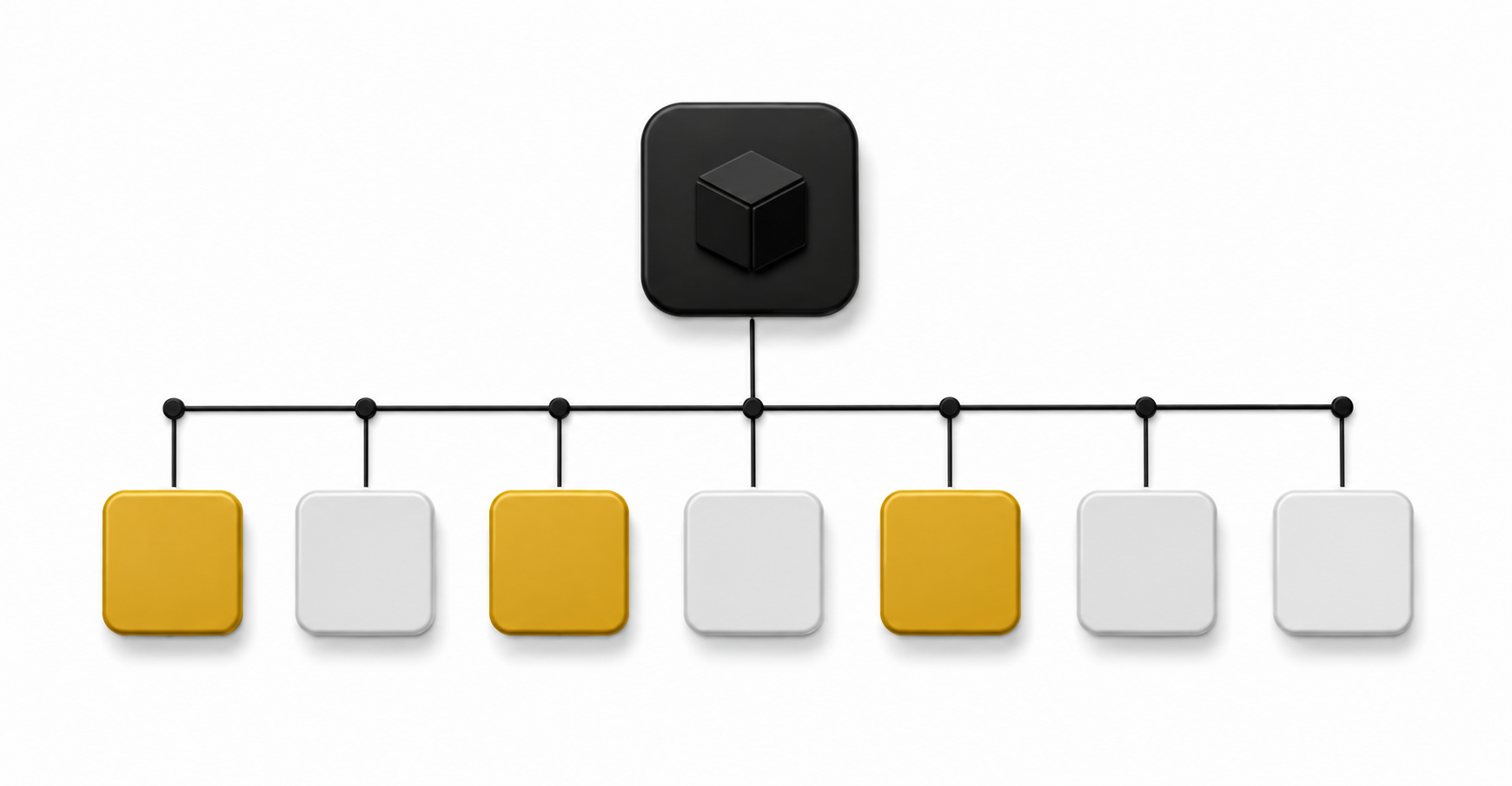
After GTIN, brand, MPN, and product category are right, custom labels are where campaign architecture meets the feed.
Custom labels (custom_label_0 through custom_label_4) are user-defined tags applied to products that campaigns can target. They don’t affect Google’s product matching at all. They exist purely for the operator to segment products for bidding and campaign structure decisions.
Common useful custom label dimensions:
| Label | Typical values | The campaign decision it drives |
|---|---|---|
| Margin tier | high, medium, low | Separate PMax campaigns and budgets by margin (see margin tier segmentation in the Performance Max structure guide) |
| Seasonality | summer, winter, all-year | Pause or push seasonal ranges by calendar |
| Inventory level | high, medium, low, clearance | Shift spend toward overstock that needs to move |
| Product age | new, established, end-of-life | Give new products their own budget while they build data |
| Bestseller status | top, mid, long-tail | Protect long-tail products from soaking up spend |
The pattern: pick label dimensions that map to actual campaign-level decisions you want to make. Custom labels that get populated but never targeted in a campaign are wasted effort.
Most accounts get value from 1-2 custom label dimensions. Five custom labels filled with detailed segmentation that nobody uses is feed bloat. The right approach is to design the campaign structure first, then populate the custom labels that structure requires.
Where descriptions actually matter
Descriptions are weighted less than titles for query matching but they matter for specific purposes.
Long-tail query coverage. Customers searching for unusual attribute combinations (“waterproof running shoes for flat feet”) rely on description-level keyword matches when the title doesn’t capture every attribute. Rich descriptions help Shopping ads surface for these queries.
PMax asset assembly. PMax uses description content to generate ad variations. Rich, specific descriptions produce better ad copy than sparse descriptions or descriptions copied directly from the product page hero.
Disapproval prevention. Some Merchant Center policies require certain disclosures in descriptions (medical claims, financial product details, age restrictions). Missing description content causes disapprovals in regulated categories.
Description structure that works:
- First sentence summarises the product clearly: what it is, key feature, brand if not in title
- Following sentences cover specifications, materials, sizing details, use cases
- Avoid marketing fluff and feature-benefit selling. Google reads it but it doesn’t help matching or ranking
What doesn’t matter: writing descriptions that sell the product to humans. The product page does that. The feed description’s job is to give Google more accurate context.
Images, MPNs, and the rest of the attribute set
Image quality matters for ad click-through rates but rarely affects whether products show in the first place. Google requires a clean, unobstructed view of the product with no borders, promotional overlays or watermarks, at least 500 x 500 pixels. A plain light background is good practice, not a requirement. Multiple images per product (image_link plus additional_image_link entries) give PMax more visual assets to work with.
For products with multiple variants (sizes, colours), each variant should have its own feed entry with the correct variant-specific image. Generic product images on size variants confuse customers and reduce conversion rates.
Identifier fields outside GTIN/MPN/brand:
- age_group: newborn, infant, toddler, kids, adult.
- gender: male, female, unisex.
- color: the actual product colour. Required wherever a product comes in several colours.
- size: the actual product size.
- material: the dominant material. Recommended for apparel, furniture, and home goods.
- pattern: striped, polka-dot, solid, etc. Recommended for apparel and home goods.
For apparel, Google requires age_group, gender, color and size in Brazil, France, Germany, Japan, the UK and the US, and for free listings in Apparel & Accessories. Shopping ads in Australia don’t require them, but fill them anyway. Shoppers filter by them, and they help matching.
These attributes matter most for categories where customers filter searches by them. Apparel benefits hugely. Electronics less so. Home goods varies.
How to audit a Google Shopping feed in 30 minutes
A quick audit catches most of the problems in the next section. Take your 20 best-selling products and run these checks in Merchant Center.
| Check | Where to look | What good looks like |
|---|---|---|
| Disapprovals and warnings | Products, filtered to items needing attention | No disapprovals on best-sellers, and every warning understood |
| Titles | Product list, title column | Brand and product type at the start, key attributes after |
| GTIN and brand | Product details | Every branded product has both |
| Category | Product details, Google-assigned category | Matches what the product actually is |
| Shopper attributes | Product details | Colour, size, gender and age group filled for apparel; material where buyers filter by it |
| Images | Product details | No overlays or watermarks, and additional images added |
| Price and availability | Five products checked against the live site | Exact match |
| Custom labels | Product details | Values actually differ, and at least one campaign uses them |
If two or more checks fail on your best-sellers, fix the feed before you change bids or budgets. For diagnosing specific warnings and disapprovals, use the Merchant Center disapproval troubleshooting guide.
Common feed mistakes that show up in audits
Patterns observed across ecommerce account audits, in rough order of frequency:
Brand field empty on branded products. The product is clearly a Nike running shoe or a Sony headphone. The brand field is blank because nobody filled it in during initial Shopify setup. Easy fix, meaningful targeting improvement.
Products sitting in the wrong category branch. Shoes filed under general clothing, for example. The category decides which attributes Google expects, so a wrong branch causes avoidable warnings. Check what Google has assigned and override only the clear mistakes.
Titles starting with marketing language instead of brand/product type. “Premium Quality Comfortable Running Shoes Perfect for Daily Wear” instead of “Nike Air Max 90 Men’s Running Shoes.” Marketing-style titles look attractive on the storefront but perform poorly on Shopping.
GTIN missing on products that have GTINs. Branded products without GTIN data trigger reduced traffic from Google. Often missing because product import didn’t include it.
Single image per product when multiple exist. Products with 5 storefront images often have only 1 in the feed because additional_image_link was never configured.
All products tagged with the same custom_label_0 value. The labels were populated but didn’t differentiate anything. Effectively the same as not having labels.
Description identical to title or copied from product page hero. Descriptions either repeat the title or copy marketing-style hero copy. Neither helps targeting.
Conversion tracking not validated against feed performance data. The feed is optimised but conversion tracking is double-counting or misconfigured. Performance data is wrong, which means optimisation decisions based on that data are wrong. For the underlying tracking diagnostic, see the Google Ads conversion tracking setup guide.
For accounts where these patterns are present in combination, fixing the feed first produces more lift than any campaign-level change. The work is unglamorous but the impact compounds across every dollar of ad spend.
When to DIY and when to hire
For Shopify stores with fewer than 100 products, feed optimisation is a discipline issue rather than a complexity issue. Most of the work is auditing each product’s attributes against the framework above, correcting where wrong, and filling where empty. A founder or in-house marketer can do this work in a focused day or two, then maintain it via Shopify’s native product editing.
For Shopify stores with 500+ products or complex variant structures, the work compounds. Manual auditing isn’t realistic. Bulk attribute updates via Shopify CSV exports, supplemental feeds in Merchant Center, or feed management apps become the practical approach. The technical setup of these tools is a one-time investment that pays back if the catalogue is large enough.
For non-Shopify platforms (custom builds, WooCommerce, headless commerce), feed management complexity rises significantly. Each platform has its own quirks around how product data maps to Google Merchant Center fields. A specialist familiar with the specific stack saves substantial time.
The honest test: if your store has fewer than 100 products and you can set aside a day or two, DIY is realistic. If it has 500+ products, complex variants, or a platform without a clean Google integration, hiring help moves from optional to cost-effective.
Feed optimisation is part of every ecommerce engagement in Google Shopping management at Adgenix. The audit framework above runs on the first 14 days of any new engagement, with prioritised fixes shipped before campaign-level optimisation begins.
For prospects who want to see what’s wrong with their current feed before committing to an engagement, the free Revenue Leak Report includes feed-level audit findings alongside the campaign and search term analysis.
FAQ
How often should feed data be updated? Real-time via Shopify’s native sales channel is ideal. If using static CSV uploads, weekly is the minimum cadence. Daily for high-velocity catalogues.
Do supplemental feeds matter? Yes, for accounts where the primary feed comes from a platform with limited attribute control. Supplemental feeds let operators override or enrich primary feed data without changing the source platform. Common use cases: adding custom labels, correcting Google Product Categories in bulk, adding promotional pricing.
Why does Merchant Center warn about a missing or incorrect GTIN when no errors are flagged? Google says products with missing or incorrect GTINs may have limited visibility, even when they stay approved. Add the GTIN from the manufacturer’s barcode. If the product genuinely has none, set identifier_exists to false. Improvements usually show within a few weeks of the next feed update.
Should I use both GTIN and MPN if available? Yes. Filling both maximises Google’s confidence in matching the product against its catalogue. Either alone is acceptable but having both is stronger.
Will optimising my feed help my Standard Shopping campaigns or just PMax? Both, but PMax benefits more because PMax leans more heavily on feed data for targeting. Standard Shopping still uses feed data for query matching, but operators have more manual overrides available.
How long until I see performance changes after a feed overhaul? Initial Merchant Center recrawl and reapproval: 1-3 days. Performance changes from improved targeting: 7-14 days for Standard Shopping, 14-30 days for PMax (PMax needs longer to recalibrate).