Most Shopify stores running Google Ads in 2026 set up the Google and YouTube sales channel app, link to Google Merchant Centre, and assume the integration handles everything technical. That works for the first $3,000 to $5,000 a month in spend. Beyond that, the gaps in the default integration start costing real money. Closing those gaps and keeping them closed is the day-to-day of Google Ads management for ecommerce stores.
This guide covers what a Shopify operator needs to do beyond the default integration: how the integration layer actually works, where feed setup matters more than most stores realise, how to architect campaigns for catalogue-driven brands in 2026, and the conversion tracking work that determines whether Smart Bidding optimises for profit or just for revenue.
If you run WooCommerce instead, the WooCommerce setup guide covers the same ground with platform-specific specifics.
The reader assumed: you’re running or about to run paid media on Google for your Shopify store. You know what Google Ads is. You’ve either set up the basics or are about to. This isn’t a beginner’s tutorial. It’s the operator content that fills the gap between “I clicked through the wizard” and “I have a campaign structure that scales.”
Read linearly the first time. Use as reference after that.
The Shopify and Google Ads integration layer
The Google and YouTube sales channel app
The official integration between Shopify and Google. Free app, installed via the sales channels section of the Shopify admin. It handles four things: authentication between Shopify and Google, automatic product feed sync to Google Merchant Centre, basic campaign creation through a wizard, and conversion tracking pixel injection via Shopify’s pixel system.
Most Shopify stores stop at the app. The default setup is fine for a store doing $1,000 to $3,000 a month in spend on a small catalogue. It becomes the structural ceiling once the account grows past that.
What the default integration handles
The app’s automatic product feed sync covers the basics: product title, description, price, image URL, availability status, and product type taxonomy mapping. The sync happens daily. New products in Shopify automatically appear in Merchant Centre within 24 hours.
Account claim and verification are handled through the app’s OAuth flow. The Merchant Centre account is linked to the Shopify domain automatically. Tax and shipping settings inherit from Shopify’s Markets configuration.
The campaign creation wizard offers Performance Max as the default. It generates a single all-products campaign with asset groups suggested based on Shopify product types. Conversion tracking sets up a Purchase event tied to Shopify’s order confirmation page.
Where the default integration falls short
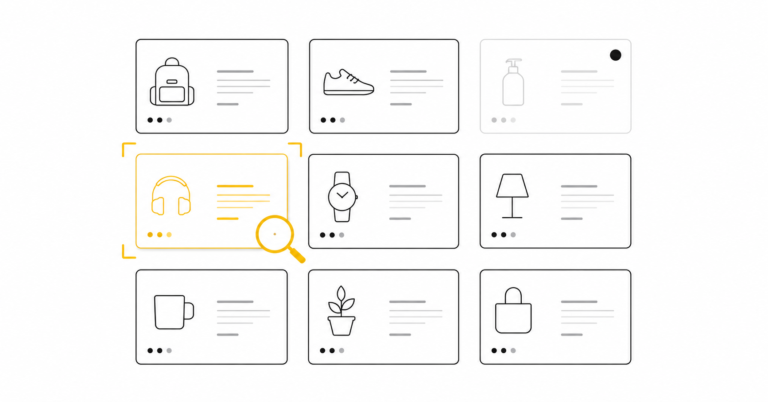
Product titles in the feed are raw Shopify titles. For Shopping campaigns, this is the single biggest factor determining what queries the product surfaces on. Default Shopify titles are usually short and brand-led. Optimised Shopping titles are structured.
Custom labels for segmentation are empty by default. The feed has fields custom_label_0 through custom_label_4 available, but the integration doesn’t populate any of them. Without custom labels, Shopping and PMax campaigns can’t be segmented by margin tier, seasonality, or strategic priority.
GTIN handling assumes every product has a global trade identification number. For private label products without GTIN, the feed needs identifier_exists set to false explicitly. The default integration doesn’t do this. Result: silent disapprovals or limited Shopping eligibility.
Conversion value reports gross order revenue, not margin-weighted value. Smart Bidding optimises for whatever value signal you send. Reporting gross revenue makes it optimise for top-line orders, which can quietly grow low-margin SKUs at the expense of profitability.
The single all-products PMax campaign works at small scale. Above $5,000 a month in spend, it stops making sense to bid the same way on a $20 product with 60 percent margin and a $200 product with 25 percent margin.
Feed setup for Shopify stores
Product titles where keywords actually live
Shopping campaigns surface products based on title content. Bid strategy and budget set the auction stakes, but title content determines whether your product is eligible for the query in the first place. This is the lever most Shopify stores ignore.
Default Shopify product titles are usually short and brand-focused. “Cotton T-Shirt” or “Atlas Backpack” or “Linen Dress.” Short titles work for SEO and for storefront UX. They fail for Shopping because Google’s matching algorithm has thin signal to work with.
The structure for Shopping titles is: brand, product type, key attribute, variant. “Adgenix Cotton T-Shirt Men’s Crew Neck Navy Size L” gives Google’s algorithm meaningful keyword signal. “Atlas Backpack Hiking 40L Waterproof Black” works similarly.
The implementation is supplemental feeds or feed rules in Merchant Centre, not changing the product titles in Shopify itself, because that breaks storefront UX. Supplemental feeds override the primary feed for the title field while leaving everything else untouched.
GTIN coverage and supplier data gaps
Google Shopping requires GTIN for branded products. Branded means products you didn’t manufacture yourself. If you sell Adidas shoes, those need GTIN. If you sell your own private label apparel, GTIN isn’t required.
Many Shopify suppliers ship products without populating the barcode field. Common with smaller wholesale suppliers, dropshipping arrangements, and brand consolidators. Without GTIN, products either get disapproved in Merchant Centre or run with limited Shopping eligibility.
The fix for private label or unique products is to set identifier_exists to false on those products. This tells Google explicitly that GTIN isn’t expected. Without that flag, the system assumes you forgot to populate it and treats it as a data quality issue.
For branded products where GTIN is missing, the fix is data: either the supplier provides GTINs, or you source them externally. Skipping this is one of the most common reasons new Shopify stores have weak Shopping performance.
Custom labels for segmentation
Custom labels 0 through 4 are five fields available in the feed for any segmentation you want. Common patterns: custom_label_0 for margin tier (high, medium, low), custom_label_1 for seasonality (evergreen, summer, winter, holiday), custom_label_2 for product status (hero, catalogue, clearance), custom_label_3 for performance tier based on prior period (top, mid, bottom), custom_label_4 for strategic priority (new launch, sale, brand defender).
Once populated, custom labels enable real segmentation in PMax asset groups and Standard Shopping campaigns. You can build an asset group specifically for high-margin hero products and bid more aggressively, while building a separate asset group for low-margin clearance products with conservative bidding.
The default Shopify integration sets zero custom labels. Implementing them requires either manual upload via supplemental feed, third-party feed-management tooling, or custom logic in a Shopify metafield-to-feed mapping.
Feed approval and disapproval patterns
Merchant Centre’s Products section shows the live state of every product. The Diagnostics tab surfaces feed issues by type and severity.
Common Shopify-specific disapproval patterns: missing GTIN on what Merchant Centre detects as branded products, mismatched price when Shopify Markets is showing different currency in storefront versus feed, inadequate shipping info for Australian stores when Merchant Centre shipping settings don’t match Shopify’s, age-restricted content not properly flagged for alcohol or supplements.
Check Diagnostics weekly, not monthly. Disapprovals compound. A single product disapproval is fine. Forty product disapprovals because Shopify pushed a price update that didn’t sync correctly is a different problem.
Supplemental feeds for promotion and seasonality
Supplemental feeds add to or override the primary feed without changing it. The primary feed handles the base product data from Shopify. Supplemental feeds layer on additional fields, overrides for specific products, or promotional context.
Common use cases for Shopify stores: a separate supplemental feed for sale items with promotion_id populated so Google can show promotional badges, a separate supplemental feed for seasonal products with custom_label_3 set to seasonal_summer or holiday_2026, a separate supplemental feed for optimised titles that override the raw Shopify titles for Shopping.
Most Shopify stores never use supplemental feeds. They’re one of the highest-value tools available in Merchant Centre, especially for stores with promotion-heavy calendars or distinct seasonal cycles.
Campaign architecture for Shopify
Search Ads for Shopify stores
Brand campaigns: yes if your branded search has volume. Below $300 a month in branded clicks potential, the management overhead exceeds the value. Above that, brand defenders earn their cost by keeping competitors from bidding on your brand name and locking up cheap clicks from people already searching for you specifically.
Generic product category Search campaigns: useful when Shopping isn’t covering certain queries well. Generic queries like “wireless earbuds” or “yoga mats” can deliver Shopping ads, but Shopping requires the algorithm to match your products to the query intent. Search Ads let you bid on the query directly with controlled landing page experience.
Competitor brand campaigns: high cost-per-click, generally low return on ad spend for ecommerce DTC. Worth testing only at scale ($30,000+ in monthly spend) where the absolute volume of even small returns justifies the experiment.
Typical Search Ads share for a mature Shopify store: 15 to 30 percent of total Google Ads spend. The exact share depends on branded search volume and category-specific intent patterns.
Standard Shopping campaigns
Smart Shopping no longer exists as a campaign type. Google migrated all Smart Shopping campaigns to Performance Max in 2022. Standard Shopping campaigns still exist as an alternative to PMax.
Use Standard Shopping when: you want granular per-query search term data (PMax shows search insights and categories instead of individual queries), you have specific bidding strategies per product segment that need manual control, you need negative keywords beyond PMax’s very limited negative options, or your account is too small to feed PMax enough conversion volume.
Use Performance Max when: your catalogue is broad enough that asset-group-driven optimisation outperforms manual segmentation, you have at least 50 conversions per month per asset group for the algorithm to learn from, you want to combine Shopping, Search, Display, YouTube, and Discovery surface in one campaign.
Most Shopify stores benefit from a mix. PMax handles the broad catalogue. Standard Shopping handles specific high-value or high-margin segments where manual control matters.
Performance Max for catalogue-driven stores
The default recommendation for Shopify stores in 2026, with a major qualifier: the default single-campaign setup is wrong.
A proper PMax architecture for a Shopify store with a meaningful catalogue means multiple PMax campaigns segmented by some strategic dimension. By margin tier (high-margin PMax with aggressive bidding, medium-margin PMax with target return on ad spend, low-margin PMax with conservative bidding or excluded entirely). By product category (separate PMax campaigns per major product category, letting each get its own conversion data and learning). By new versus evergreen (PMax for new product launches with broader exploration, separate PMax for evergreen catalogue with refined bidding).
By margin tier is the most common starting point for Shopify stores moving past the default setup. The segmentation is implemented via custom labels in the feed.
Asset group strategy within each PMax: provide audience signals (existing customers, similar audiences from your customer list, in-market segments). Provide content signals (hero product images, brand video assets, varied creative). Without strong asset signals, PMax becomes a black box that performs unpredictably.
Watch for brand search cannibalisation. PMax can outrank brand campaigns on branded search queries. The result is paying PMax CPCs for branded clicks that Search Ads would have served at lower cost. Solution: account-level negative keyword list with your brand terms applied to PMax campaigns where appropriate.
For PMax structure guidance independent of platform, see the Performance Max campaign structure guide for ecommerce.
For diagnosing and fixing disapprovals once they occur, see the Google Merchant Center disapproval troubleshooting guide.
When to layer Demand Gen
Demand Gen ads (replacing Discovery in 2024) handle paid media on YouTube Shorts, Google Discover, and Gmail Promotions tabs. Visually-driven, top-of-funnel paid media.
Useful for: visual-heavy products (fashion, beauty, home decor) where creative is the differentiator, brand awareness for newer stores building category presence, retargeting cold audiences who visited but didn’t convert.
Generally not worth running before Search, Shopping, and PMax are stabilised. The principle: don’t add a second channel until the first is at scaling ceiling. Demand Gen layered on top of working Search and Shopping and PMax adds incremental reach. Demand Gen as a replacement for proper Shopping work doesn’t.
Typical share once added: 10 to 20 percent of total Google Ads spend.
Conversion tracking and value mapping
Shopify’s checkout funnel and conversion events
The Google and YouTube channel app automatically sets up a Purchase event tied to Shopify’s order confirmation page. The event fires when a customer reaches the thank-you page after successful checkout.
For accurate Smart Bidding, the Purchase event is what matters most. Add to Cart and Begin Checkout events are useful supplementary signal but aren’t load-bearing for bid strategy optimisation.
The implementation is via Shopify’s native pixel system. Google’s tag injects through Shopify’s Customer Events configuration when the Google channel app is installed. No manual GTM work required for the basic setup.
The gaps in default setup: enhanced conversions (which improve attribution accuracy by passing first-party data) are not enabled by default. Conversion value with margin (which optimises Smart Bidding for profit instead of revenue) is not configured. New customer versus returning customer value differentiation is not set up.
Conversion value with COGS and margin
The default Shopify setup reports gross order value as conversion value. If a customer orders $200 worth of products, conversion value reported to Google Ads is $200, regardless of whether your cost of goods sold for that order is $30 or $150.
The problem: Smart Bidding optimises for whatever value signal you send. Reporting gross revenue makes it optimise for top-line orders, which can grow low-margin SKUs at the expense of profitability.
Better setup: implement value rules that subtract estimated COGS from conversion value, or weight conversion value by margin tier via custom labels.
The implementation paths: Merchant Centre value rules combined with custom labels (margin tier), or Shopify metafields populated with margin data combined with Google Ads conversion adjustments via offline import, or third-party tools that bridge Shopify margin data to Google Ads conversion value.
The cleanest path for stores at $10,000 a month or more in spend is the custom labels and value rules combination. Custom_label_0 set to margin tier in the feed, value rules in Merchant Centre or Google Ads that multiply conversion value by the margin coefficient. Takes one focused setup session and works ongoing.
New customer versus returning customer value rules
Smart Bidding can weight new customer acquisitions higher than repeat customers when configured. Useful for stores where lifetime value of new customers is meaningfully higher than first-order value.
Setup: Google Ads value rules, with new customer condition determined by either Google Ads first-party customer match audience exclusion or Shopify’s customer data. The new customer multiplier typically lands between 1.2x and 2.0x depending on first-order versus lifetime ratio.
This is a more advanced setup than margin weighting. Worth doing only after margin weighting is in place and stable.
Common tracking conflicts
Multiple analytics apps installed simultaneously can double-count conversions. Shopify’s native pixel, the Google channel app’s pixel, third-party analytics apps, GTM containers added by previous agencies. The total stack can fire the Purchase event two or three times for a single order.
Symptom: Google Ads conversion count significantly higher than Shopify orders dashboard. A 20 percent discrepancy is usually a double-counting issue. A 40 percent discrepancy is almost certainly double-counting.
Custom theme code can override Shopify’s default pixel injection. If your theme has been heavily customised or imported from a third-party developer, the standard pixel events may not fire correctly. Check by viewing the order confirmation page source for the expected conversion tags.
Subdomain checkouts (where checkout happens on checkout.yourstore.com rather than yourstore.com/checkout) can break attribution if Google Ads tagging isn’t set up across both domains. Cross-domain tracking needs explicit configuration.
Common Shopify-specific issues
Variants and parent products
Shopify variants (size, colour, material, configuration) sync to Google as individual products by default. A T-shirt with 5 sizes and 4 colours generates 20 variant products in the feed.
Each variant needs its own GTIN if the parent product is branded, its own image (or shares the parent image), its own price, and its own availability status. Most Shopify operators don’t realise this until they look at Merchant Centre and see 200 products from a 20-SKU catalogue.
Common issue: 50 variants of one product all using the same hero image. Google Shopping shows multiple listings for what looks like the same product. Solution: variant-specific images or use the item_group_id field correctly to group variants under a parent product display.
For apparel especially, variant-specific imagery is meaningful (different colour photos). For size-only variants of identical products, the parent image works fine and item_group_id keeps the listings grouped.
Stock-out behaviour
Default Shopify behaviour: out-of-stock variants stay in the feed but flagged as out of stock in Merchant Centre. They’re marked but not removed. Some campaign types continue bidding on them with the wrong assumption that the product is available.
The wasted spend: clicks on out-of-stock products that route to a sold-out landing page experience. Bad for the user, wasted budget, and damages the account’s ad quality signal over time.
Solutions: feed rule in Merchant Centre that excludes products where availability equals out of stock, or asset group segmentation in PMax that filters by availability custom label, or Shopify metafield-driven feed exclusion for back-ordered products. The right answer depends on whether out-of-stock products will restock quickly (keep them in the feed but exclude from bidding) or permanently (remove from feed entirely).
International product feeds and currency handling
Shopify Markets enables multi-currency, multi-locale stores. Each market needs its own Merchant Centre account and its own Google Ads campaigns for clean currency handling. Common mistake: running a single Merchant Centre account with multi-currency products. Google shows prices that don’t match the user’s currency context. Bidding gets confused across markets.
Tax inclusion matters. Australian stores selling to Australian customers use GST-inclusive pricing. US stores typically use tax-exclusive pricing. When an Australian store’s feed lists GST-inclusive prices and competes against US-sourced feeds with tax-exclusive prices, the Australian store’s products appear more expensive than equivalent products from international competitors.
For Australian stores selling internationally: separate Merchant Centre accounts per major currency target (AU, US, UK, EU as needed). Each account configured for that market’s tax expectations.
Conversion value for Australian stores: set ex-GST for accurate margin calculation in Smart Bidding. The 10 percent difference between GST-inclusive feed price and ex-GST conversion value is significant when you’re optimising bids on margin.
Shopify Plus stores with Markets Pro for international currency have a more complex Merchant Centre setup. Each Market typically gets its own Merchant Centre account. Worth verifying setup matches actual customer experience.
Optimisation framework for Shopify Google Ads
First 30 days
The first 30 days are diagnostic and structural, not optimisation. The mistake most Shopify operators make is trying to optimise bidding in week one. The data isn’t there yet, the structure isn’t right yet, and any bid changes you make are guessing.
Week 1 and 2: audit existing setup. Feed quality (GTIN coverage, title structure, custom labels, supplemental feeds), conversion tracking accuracy (Shopify orders versus Google Ads conversions reconciled), campaign architecture issues (single all-products PMax, brand cannibalisation, missing negatives).
Week 3 and 4: implement structural fixes. Feed work first (titles, GTINs, custom labels). Conversion value rules second. Campaign restructure third (split PMax by margin tier or category, set up Standard Shopping for specific segments, configure brand defender campaigns properly).
Avoid bid strategy changes in the first 30 days unless something is clearly broken. Let the existing strategies run while structural fixes happen underneath.
30 to 90 days
The structural fixes from days 1 to 30 trigger Smart Bidding learning periods. Performance Max needs 30 to 50 conversions after any structural change to stabilise. Smart Bidding strategies in general need similar volume to recalibrate.
Days 30 to 60: monitor stabilisation. Avoid further structural changes that reset learning. Watch performance trends. If something has clearly broken (CPCs spike disproportionately, conversion rate drops, Quality Score declines), investigate that specific issue. Otherwise, let the algorithm learn.
Days 60 to 90: identify scaling lanes. Which products, segments, or campaigns can take more budget profitably? Which are under-performing and should be deprioritised or paused? This is the first window where data-driven optimisation decisions make sense.
Ongoing optimisation cadence
Weekly: Merchant Centre Diagnostics check, search terms report review for Standard Shopping and Search campaigns, asset performance check in PMax campaigns, feed health verification.
Fortnightly: campaign-level performance review, budget reallocation across campaigns based on performance, asset group performance check for PMax, conversion value reconciliation against Shopify orders.
Monthly: full feed audit (any product data drift, new disapprovals, custom label accuracy), conversion value rules review, new product feed inclusion verification, asset rotation for fatigue.
Quarterly: structural campaign review (consolidation or splitting), bid strategy evaluation against current account state, audience refresh (customer match list update, new lookalike audiences), competitive landscape check.
When to consider professional help
The Shopify and Google integration is genuinely workable for stores running it themselves at moderate scale. The break-points where specialist help compounds the return:
Monthly spend has crossed $5,000 and Performance Max is still running on the default single-campaign setup. Conversion tracking hasn’t been audited since launch, and the gap between Google Ads conversion count and Shopify orders dashboard has grown beyond 10 to 15 percent. The Shopping feed hasn’t been touched since launch. Custom labels are empty. Product titles are raw Shopify titles. GTIN coverage is incomplete. The marketing manager handling Google Ads is also running SEO, email, and creative production, and depth has plateaued or gone backwards. Growth has flatlined for six months or more despite consistent ad spend.
Any two of those signals together is the threshold where specialist or senior generalist help typically compounds significantly more value than the retainer cost.
For the broader question of which tier of provider fits your business (in-house, generalist, specialist, agency), the ecommerce PPC agency vs freelance specialist decision framework covers the decision in detail. For the Shopping-specialist-specific question, when to hire a Google Shopping specialist covers that decision specifically.
Both are companion pieces to this guide. This guide tells you what to do. Those tell you who should be doing it.
Frequently asked questions
Can I just use Shopify’s Google and YouTube sales channel app and skip the rest?
Yes for early-stage stores under $3,000 to $5,000 a month in Google Ads spend with small catalogues. The default integration handles the basics: feed sync, conversion tracking, basic PMax setup. Beyond that spend tier, the gaps in the default integration cost more than the time investment to fix them.
Should I use Standard Shopping or Performance Max for my Shopify store?
Most Shopify stores benefit from a mix. Performance Max is the default for broad catalogue coverage and algorithm-driven optimisation. Standard Shopping is useful for stores needing manual control over search terms, specific bid strategies per segment, or negative keyword management beyond PMax’s limited options.
Why are my Shopify product titles different in Google Shopping than on my storefront?
Either Shopify’s automatic title generation is being used (which is basic) or you’ve set up a supplemental feed in Merchant Centre with optimised titles. Supplemental feeds are the right answer for Shopping. Don’t change the titles in Shopify itself because that breaks storefront UX. Layer Shopping-optimised titles in a supplemental feed instead.
My Google Ads conversion count does not match my Shopify orders. Which is right?
Shopify orders is the source of truth for actual sales. Google Ads conversion count discrepancy is usually caused by multiple analytics apps double-counting, attribution lag, or tagging conflicts. A 20 percent gap is typically double-counting. A 40 percent gap is almost certainly double-counting. Worth a tracking audit.
Do I need GTINs for every product in my Shopify store?
Required for branded products in Google Shopping. Not required for private label or genuinely unique products. For private label products, set identifier_exists to false in the feed. Missing GTINs on branded products cause silent disapprovals or limited Shopping eligibility. Worth resolving early.
Where Adgenix sits
Adgenix runs Google Ads, Google Shopping, and Performance Max for ecommerce DTC brands nationally, with deep specialisation in Shopify and Shopify Plus stores. Single senior operator, 8+ years in paid media, audit-first engagement model.
The work covered above is what we do day to day: feed optimisation, campaign architecture, conversion value engineering, ongoing optimisation cadence. Best fit for stores at $5,000 a month and up in Google Ads spend, 50 to 5,000 SKUs, where paid media is a primary revenue channel.
Australia-wide service, Melbourne-based. The Google Shopping specialist track is the entry point for ecommerce-focused engagements where Shopping and PMax are the primary surface area.
The audit is the cleanest first step regardless of how much of this guide applies to your specific account. Even if you stay DIY, the audit findings tell you what your account is missing.
Book the Free Revenue Leak Report to see what your Shopify Google Ads account is leaking before deciding what to do about it.
Once your Shopify feed and campaigns are live, the next lever is how you structure Performance Max itself. Our guide on structuring Performance Max asset groups and creative for ecommerce covers the asset requirements, video specs, and 2026 platform changes that determine whether a Shopify store gets the most out of PMax.