Most WooCommerce stores running Google Ads in 2026 install a feed plugin, connect it to Google Merchant Centre, and assume the integration handles everything technical. That assumption is where the trouble starts.
WooCommerce gives you more control than Shopify. More plugins, more hosting choices, more theme customisation, more places to tune performance. It also gives you more places where things can break silently. A misconfigured caching rule can suppress 40% of your conversions without anyone noticing for months. A theme update can break the standard WooCommerce checkout hook that your tracking depends on. A free feed plugin can export titles that look fine to you but kill your Shopping click-through rate.
This guide covers what actually matters for WooCommerce operators running paid media on Google in 2026. It assumes you know what WooCommerce is, what Google Ads is, and that you have a store with products generating real revenue. The audience is operators with $5,000 to $200,000 in monthly ad spend, 20 to 1,000 SKUs, and enough technical comfort to navigate WordPress without breaking it. Keeping these pieces working month after month is part of managing Google Ads for an online store.
If you run Shopify instead, the Shopify version of this guide covers the same ground with platform-specific specifics.
The WooCommerce + Google Ads integration layer
WooCommerce does not have a single first-party sales channel for Google like Shopify’s native Google & YouTube app. You install a plugin, configure it, and that plugin sits between your store and Google Merchant Centre.
That sounds straightforward. The decisions inside that sounds-straightforward step determine whether your Shopping campaigns actually work.
Plugin landscape
WooCommerce feed plugins fall into three broad categories. Free, basic feed plugins generate a product feed XML or CSV and let you submit it to Merchant Centre manually. These work for small catalogues and stores that just want products listed.
Full-featured feed management plugins (paid, usually $50-200 per year) handle automated feed updates, advanced attribute mapping, multi-store support, custom labels, and supplemental feed generation. Most ecommerce stores past the $3,000 monthly spend mark are using something in this category whether they realise it or not.
All-in-one marketing plugins bundle feed generation with other features like email marketing, abandoned cart recovery, and analytics. These can work but tend to do feed management as a secondary feature, with less depth than dedicated feed plugins.
The right choice depends on catalogue size, attribute complexity, and how much customisation you need. A 50-SKU store with straightforward products needs less than a 1,000-SKU store with variations and multi-currency.
What a good feed plugin actually does
A good WooCommerce feed plugin handles the technical work that would otherwise eat 10 to 20 hours of your month. It generates the XML or CSV feed from your WooCommerce products, maps WooCommerce product data to Google Shopping fields correctly, supports custom attributes for GTIN, brand, MPN, color, size, material, and pattern, updates the feed on a schedule (every 24 hours minimum, ideally more often for active catalogues), handles category mapping to Google Product Categories, supports custom labels for segmentation in Shopping campaigns, and integrates with conversion tracking where relevant.
The basic feed exports you get from cheaper plugins miss several of these. Custom labels are usually the first feature dropped. Custom attribute mapping is usually the second.
Where most WooCommerce stores get this wrong
The pattern is consistent across audits. Stores choose the cheapest plugin that exports a feed without considering custom attributes or labels. They skip category mapping, sending everything to Merchant Centre with the default “Uncategorized” tag. They use the plugin’s default title template (typically just the product name) without customisation. They configure the integration once at launch and never check feed quality in Merchant Centre’s Diagnostics tab afterwards.
Six months later, half the products are in approved-but-suppressed status, custom labels are blank, and PMax campaigns are bidding the same on every product regardless of margin. The store owner does not understand why ROAS is mediocre.
Feed setup for WooCommerce stores
Feed quality determines Shopping performance more than any other single factor. WooCommerce-specific feed setup involves several decisions Shopify operators do not face.
Product titles in WooCommerce
The Shopping title structure that works is the same regardless of platform: brand, product type, key attribute, variant. The implementation differs.
In WooCommerce, you do not change product titles in the products database to optimise for Shopping. That would change titles on your storefront, in search results, in transactional emails, and everywhere else WooCommerce uses the product name. Instead, feed plugins let you construct Shopping-specific titles using placeholders.
A reasonable title template for a fashion store might be:
{brand} {product_title} {attribute_color} {attribute_size}
Which generates something like:
Acme Brand Cotton T-Shirt Navy Large
The original product title in WooCommerce stays as “Cotton T-Shirt.” The feed sends the enhanced title to Google. Storefront and Shopping see different titles, which is correct because they serve different contexts.
Default WooCommerce titles are usually shorter than Shopify defaults because WooCommerce store owners optimise for clean storefront display. Without title template customisation in your feed plugin, you are sending those short titles to Google. Short titles match fewer queries. Fewer matches means fewer impressions.
GTIN attribute setup
WooCommerce has no native GTIN field. This is one of the most common silent feed quality issues for branded resellers.
Three approaches work:
Custom WooCommerce attribute. Create a product attribute called “gtin” or “barcode” through the WooCommerce admin. Set GTIN values per product. Map the attribute to GTIN in your feed plugin’s settings.
Feed plugin’s built-in GTIN field. Most paid feed plugins add a custom GTIN field to the WooCommerce product edit screen. Use it.
WooCommerce SKU field repurposed. Do not do this. SKU has different semantic meaning (internal stock-keeping unit). Using SKU as GTIN creates problems downstream and signals to Google that your data is unreliable.
For private label products without GTINs, set identifier_exists = false on those products. Branded products that should have a GTIN but do not provide one fall into a silent Shopping eligibility loss state. They stay listed but cannot bid for branded queries effectively.
Custom labels via WooCommerce attributes
Custom labels (custom_label_0 through custom_label_4) are the segmentation backbone of competent Shopping campaign structure. Stores that ignore them are bidding the same on a 5% margin loss leader as on a 60% margin hero product.
WooCommerce implementation requires creating product attributes for the segmentation dimensions you want to use. Common labels worth setting up:
margin_tier(high, medium, low) for margin-aware biddingseasonality(year-round, seasonal, clearance) for time-bound budget shiftsperformance_tier(proven, evergreen, new) for new-product investment campaignsstrategic_priority(hero, mid, tail) for product hierarchy bidding
Create these as WooCommerce attributes. Assign values per product. In your feed plugin, map each to a custom_label slot. The labels appear in Merchant Centre and become available in Shopping and PMax campaigns for segmentation.
Most WooCommerce stores skip this entirely. It is one of the highest-impact missed optimisations in the entire platform.
Feed approval and disapproval patterns
Merchant Centre’s Diagnostics tab tells you what is approved, suppressed, or disapproved. Check it weekly for active stores.
WooCommerce-specific common issues that surface in Diagnostics:
- Broken image URLs when WordPress uploads structure changes (theme migration, hosting change)
- Mismatched price when WooCommerce dynamic pricing rules conflict with the displayed price the feed scraper sees
- Inadequate shipping configuration when WooCommerce shipping zones do not match the shipping policies declared in Merchant Centre
- Missing required attributes like
availability,condition, orage_group(for apparel)
The shipping mismatch is particularly common. Stores set up shipping in Merchant Centre once at launch, then change WooCommerce shipping zones over time without updating Merchant Centre. Google sees the mismatch and starts disapproving products.
Variant attribute handling
This is the largest WooCommerce-specific quirk and trips up most operators on first setup.
WooCommerce variations work as children of a parent product. A “Cotton T-Shirt” parent product has child variations for each color and size combination. Each variation has its own SKU, price, stock, and potentially its own image.
Your feed plugin needs to decide what to send to Google. Two patterns work:
Send variations as individual products. Each variation becomes its own Shopping listing with its own GTIN, image, and price. Use item_group_id to group variations under the same parent so they display as a group in Shopping.
Send the parent product only. A single listing for “Cotton T-Shirt” without variation-level pricing or images.
Most stores want the first pattern (variations as individual products with item_group_id). Most basic feed plugins default to the second pattern (parent only). The result is operators not realising their variant-level pricing and color-specific images are not appearing in Shopping until someone audits Merchant Centre months later.
Check this in Merchant Centre’s product list after launch. If you see one listing per parent product and your store has variations with different attributes, your feed is misconfigured.
Campaign architecture for WooCommerce
Once the feed is solid, the campaign decisions for WooCommerce stores follow the same architecture as any ecommerce store on Google Ads. Platform-specific factors mostly affect which segmentation lanes you can pull because of how your custom labels are set up.
Search Ads for WooCommerce stores
Search Ads work the same for WooCommerce as for any other platform. The decisions:
Brand campaigns if branded search volume warrants. Run them. Brand defence is worth it once a competitor starts bidding on your name.
Generic category campaigns if Shopping coverage is incomplete or if you target informational queries that Shopping does not serve well. For example, “best running shoes for flat feet” generates Shopping listings but a Search Ad pointing to a buying guide page can convert better.
Competitor brand campaigns generally not worth it for sub-$50,000 monthly spend stores. The economics rarely work, and competitor targeting needs more spend to learn from.
Typical Search allocation: 15-30% of total spend. The exact ratio depends on whether your category has strong Search intent that Shopping misses.
Standard Shopping campaigns
Google migrated Smart Shopping to Performance Max in 2022. Standard Shopping (manual, product-group-based) still exists.
Use Standard Shopping when you want granular per-query search term data (PMax shows search insights and categories instead of individual queries), need manual segment-level bid control for product groups, need stronger negative keyword support than PMax offers, or your account spend volume is too small for PMax to learn effectively.
For WooCommerce specifically, Standard Shopping pairs well with stores that have complex variant structures. The manual product group bidding gives more control over how different variation segments compete in auctions.
Performance Max for catalogue-driven stores
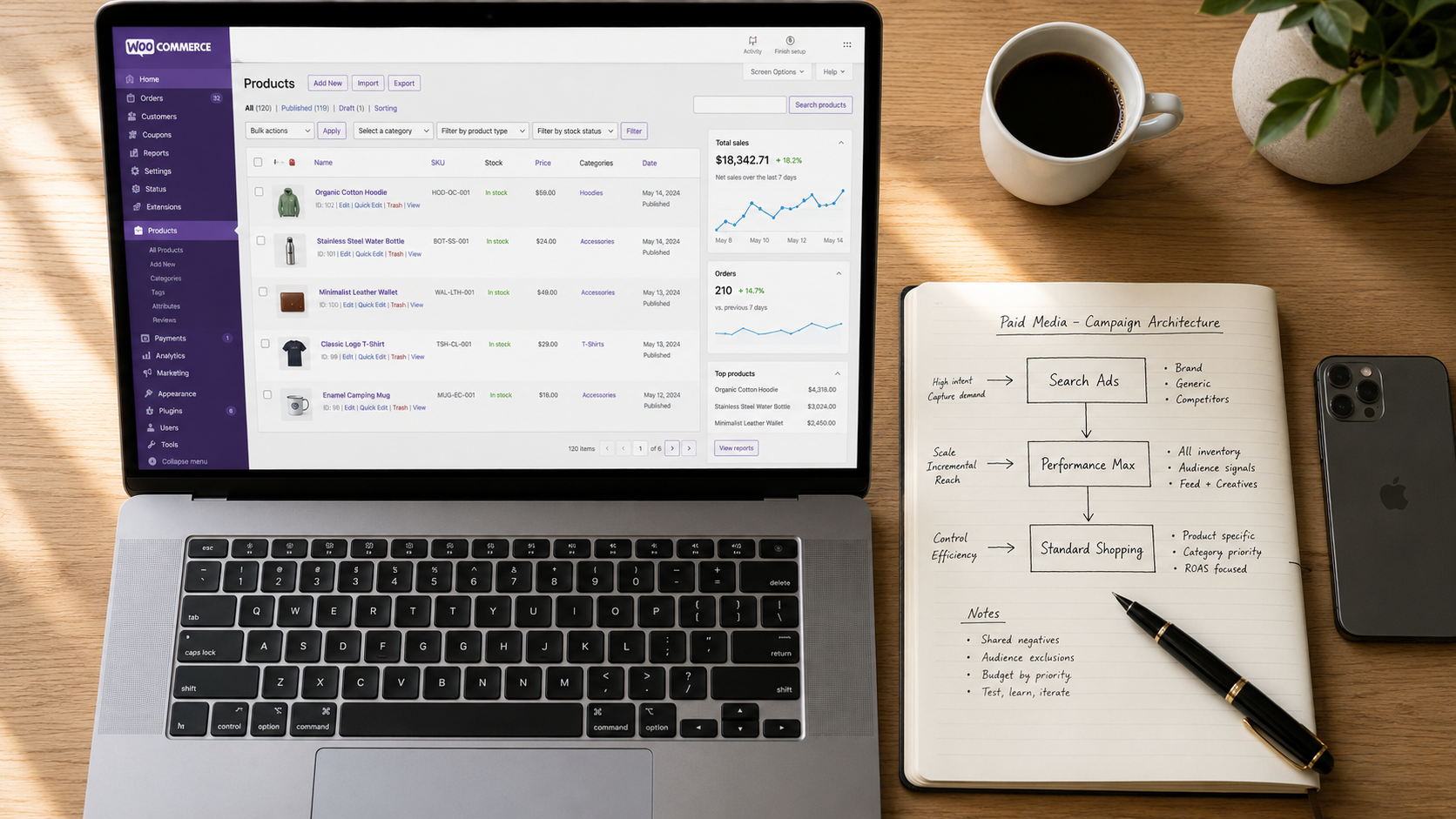
PMax is the default recommendation for catalogue-driven WooCommerce stores at $5,000+ monthly spend. The trap is the default single-campaign-everything setup that Google recommends.
A single PMax campaign with all your products bids the same way on a 60% margin product as on a 5% margin loss leader. The algorithm optimises for whatever conversion goal you set, which usually means it spends heavily on the products with the most volume regardless of margin.
The fix is segmentation. Split PMax into 2-4 campaigns by:
- Margin tier using your custom_label_0 mapping
- Product category for stores with very different category economics
- New vs evergreen for new product investment campaigns
- Strategic priority (hero, mid, tail) for stores with clear product hierarchies
Use asset signals correctly. Audience signals tell Google who to find. Content signals (text assets, image assets, video assets) give the algorithm material to work with. Both matter. Both get ignored by stores doing default PMax setup.
Brand cannibalisation is real. PMax campaigns will bid on your brand terms by default. Either accept this (some stores prefer simplicity), or use brand exclusion negative keyword lists at the campaign level if you have a separate Search brand campaign that you want to capture brand intent.
For PMax structure guidance independent of platform, see the Performance Max campaign structure guide for ecommerce.
For diagnosing and fixing disapprovals once they occur, see the Google Merchant Center disapproval troubleshooting guide.
When to layer Demand Gen
Demand Gen (formerly Discovery Ads) work for visual-heavy WooCommerce stores. Fashion, beauty, home decor, lifestyle categories see meaningful uplift. Commodity or technical categories see less.
Add Demand Gen once Search and Shopping and PMax are stabilised. Running it first or alongside immature account structures creates noisy attribution and budget sprawl. Once added, expect 10-20% of total spend share.
Conversion tracking and value mapping
This is where WooCommerce gets harder than Shopify. The conversion tracking layer in WooCommerce has more failure modes because the platform is more flexible.
The thank-you page event
WooCommerce fires a hook called woocommerce_thankyou when an order is received. This is the standard place to fire conversion tracking events. The URL is usually /checkout/order-received/ or similar.
Different from Shopify’s auto-injected Customer Events, the WooCommerce thank-you page is just a regular WordPress page rendered by your theme. Theme customisations, page builders, and caching plugins can all interfere with whether and how the conversion event fires.
Most reliable setup: tag firing on the WooCommerce thank-you page hook, with the order data passed through WooCommerce’s order object.
GTM vs direct gtag
You have two paths to fire tracking on WooCommerce purchases.
Direct gtag. Insert the Google Ads conversion script directly into the WooCommerce thank-you page template, either via a child theme function or via a plugin that hooks into woocommerce_thankyou. Works. Hard to maintain when you need to add Meta Pixel, Microsoft Ads, or other tracking later. Each new platform means another code change.
Google Tag Manager (GTM). Install GTM once. Manage Google Ads, GA4, Meta Pixel, Microsoft Ads, and any other tracking from a single interface. Triggers can be conditional on order status, value thresholds, product categories, or customer attributes.
For any WooCommerce store at $3,000+ monthly ad spend, GTM is the better path. The setup complexity pays back the first time you need to add Meta Pixel or update conversion tag configuration without editing code.
A common WooCommerce GTM pattern uses the dataLayer to push order data on the thank-you page, then GTM tags consume that dataLayer to fire each individual platform conversion. Several WordPress plugins handle the dataLayer push automatically if you do not want to write the code yourself.
Conversion value with COGS and margin
Default WooCommerce conversion tracking sends the order total as the conversion value. Order total is what most WooCommerce stores send to Google Ads. It is also what most stores continue to use long-term, for one main reason: COGS data is rarely populated in WooCommerce.
The theoretically better approach is margin-aware conversion value. If your products have different margins, optimising on gross revenue means the algorithm prioritises whatever drives revenue regardless of profitability. A 5% margin product driving $1,000 in revenue contributes $50 to gross profit. A 50% margin product driving $500 in revenue contributes $250 to gross profit. Revenue-based optimisation rewards the first one even though the second one is better for the business.
The catch: making margin-aware tracking work requires COGS data per product. Most WooCommerce stores have not populated COGS in their product database. Without that data, margin-aware tracking is theoretically correct but practically out of reach.
If you do have COGS data populated per product, three approaches work for enriching conversion value:
WooCommerce custom fields for COGS per product. Add a custom field to each product holding the cost. A WordPress function or plugin calculates margin per item at checkout, then GTM picks up the margin-weighted value rather than gross revenue.
Google Ads value rules with custom labels. Set up value rules in Google Ads that adjust conversion value based on which custom_label tier the product falls into. Less precise than per-product COGS, but workable without full COGS data if you can roughly categorise products into margin tiers.
Hybrid: gross revenue tracked, margin-weighted value applied via GTM transformation. Send the gross revenue as a secondary metric for visibility, but use a calculated value-per-conversion for optimisation.
If you do not have COGS data, default to gross revenue tracking. It is the honest answer: better to optimise reliably on gross revenue than to fake margin tracking with incomplete data. Custom labels can still segment campaigns by approximate margin tier even without precise COGS values, which captures some of the margin awareness without requiring per-product cost data.
Common tracking conflicts
These are the WooCommerce-specific failure modes that account for most “my conversions don’t match my orders” support tickets.
Caching plugin conflicts. This is the single most common WooCommerce tracking problem. LiteSpeed Cache, WP Rocket, and W3 Total Cache (the three most-used caching plugins) can serve cached versions of the thank-you page that do not fire conversion scripts. The fix is excluding the thank-you and checkout paths from cache. All three plugins support exclusion rules in their settings. Typical exclusion paths: /checkout/, /order-received/, /thank-you/, /my-account/.
Theme customisations. Custom thank-you templates created by developers may not call the standard woocommerce_thankyou hook that your tracking depends on. Check the theme’s template files for any override of the order-received template.
Page builder overrides. Elementor, Divi, Beaver Builder, and other page builders can replace the default WooCommerce checkout flow with custom-built versions. Custom flows often miss the standard hooks. If your store uses a page builder for checkout, audit whether the tracking events still fire on order completion.
Multiple tracking plugins. Some stores have a generic GA4 plugin AND a Google Ads conversion plugin AND a Meta Pixel plugin all firing on the same event. The result is conversions counted twice or three times. Either consolidate to one plugin per platform or use GTM to manage everything from one place.
Subscription products. WC Subscriptions fires recurring revenue events differently from one-time purchases. Recurring revenue tracking is often missed entirely. Most basic conversion tracking setups only fire on the initial order, not on each recurring renewal.
Common WooCommerce-specific issues
Beyond tracking conflicts, several WooCommerce-specific issues affect paid media performance often enough to call out.
Caching plugin conflicts with tracking
Covered above. Worth its own callout because it accounts for so many “my Google Ads conversions are wrong” support cases. Symptom: Google Ads conversion count is 30-50% lower than WooCommerce orders dashboard. Cause: cached thank-you page served, conversion scripts do not fire. Fix: exclude conversion paths from cache in your caching plugin settings.
Variant and parent product handling
Covered in the feed section. Worth noting again because it is the second-most-common WooCommerce paid media issue. Variations not handled correctly mean variant-level pricing and color-specific images do not appear in Shopping. Use item_group_id to group variations correctly.
Stock-out and back-order display
WooCommerce stock management is granular: you can track stock per parent product or per variation. The default behaviour for out-of-stock products is to keep them listed in your feed with the availability flag set to “out of stock.”
For Shopping, the better pattern is to exclude out-of-stock products from the feed entirely. Most feed plugins support a rule: if stock_status = outofstock, exclude from feed. Set this up at launch.
On-backorder products are a judgement call. If you ship from backorder reliably within 1-2 weeks, you can leave them in the feed. If backorder means 4-12 weeks, exclude them. Customer expectations from Shopping ads are short shipping timeframes.
Multi-currency and WPML setups
Multilingual WooCommerce stores typically use WPML or similar translation plugins. Each language version may have separate product URLs.
If you sell in multiple languages, your feed plugin needs to handle this correctly. Either a single feed with locale attributes, or separate feeds per locale submitted to separate Merchant Centre accounts depending on the markets you serve.
Multi-currency stores face a similar decision. Selling in AUD, USD, and GBP from one WooCommerce store usually means either three Merchant Centre accounts (one per currency, each with its own feed) or a multi-currency feed with proper currency attributes.
This is more complex than Shopify Markets handles natively. Worth scoping properly before launching paid media in additional countries.
GST handling for AU WooCommerce stores
Australian WooCommerce stores selling to Australian customers usually display GST-inclusive pricing. Your feed should send GST-inclusive prices to match what customers see on your storefront.
The trap is conversion value reporting. WooCommerce reports order totals in your dashboard inclusive of GST. Your conversion tracking script might send GST-inclusive or GST-exclusive depending on configuration. Mismatches between the dashboard and Google Ads create discrepancies that make optimisation harder.
Decide on one approach (usually GST-inclusive for consistency with display pricing) and configure your conversion tracking to match.
Plugin update conflicts
The silent killer. WooCommerce, your feed plugin, your caching plugin, your tracking plugin, and your theme all update independently. Any update can break compatibility with the others.
Typical pattern: feed plugin updates introduce a new attribute mapping. Tracking plugin updates change which dataLayer events fire. Caching plugin updates introduce new cache rules that conflict with previously-configured exclusions.
Monitor your conversion data weekly. A sudden 20% drop in Google Ads conversions when your WooCommerce dashboard shows no order drop usually means a plugin update broke something.
Optimisation framework for WooCommerce Google Ads
The first 90 days of any WooCommerce paid media account follow a predictable pattern. After 90 days, the work shifts to maintenance and selective scaling.
First 30 days
Week 1: verify the foundations work. Feed is generating correctly. Merchant Centre Diagnostics shows products approved. Caching plugin exclusions are in place. Conversion tracking fires on test orders. Variant handling sends item_group_id correctly. GST on conversion values matches the dashboard.
Week 2-3: launch base campaigns. Search for brand defence. PMax with intentional segmentation (not single-campaign default). Standard Shopping if you need per-query search term data.
Week 4: first review. Are products being shown in Shopping (Merchant Centre product performance tab)? Are PMax campaigns spending across your segments or concentrating in one? Are conversions tracking correctly versus WooCommerce orders?
30 to 90 days
Stabilisation. Optimise based on actual data rather than launch assumptions.
Negative keyword work. PMax search insights and Standard Shopping search terms reveal queries you do not want to bid on. Add negatives at the campaign or shared list level.
Custom label refinement. Whatever labels you set up at launch are probably not quite right. Adjust segmentation based on which segments are actually profitable.
Conversion value refinement. If you launched with revenue-based conversion value, this is when to layer in margin awareness if you have not already.
Bid strategy progression. Most accounts start on Max Conversions or Max Conversion Value, then move to tCPA or tROAS once enough data is collected. A working rule, not a Google requirement: about 30 conversions in 30 days before moving to Target CPA, and about 50 before Target ROAS.
Ongoing optimisation cadence
After 90 days, optimisation becomes routine rather than reactive.
Weekly: negative keyword review, search term cleanup, budget allocation between campaigns, urgent disapprovals.
Fortnightly: bid strategy review, asset performance check (which PMax assets are top performers, which are flagged low), price competitiveness review.
Monthly: deeper review of conversion data quality, attribution patterns, year-over-year or month-over-month performance.
Quarterly: account structure review, campaign restructuring decisions, strategic shifts based on business priorities.
Plugin update conflict monitoring sits across this cadence. Any time you update WooCommerce, your feed plugin, your caching plugin, or your tracking setup, verify that conversions still report correctly the following week.
When to consider professional help
The decision to bring in outside paid media help is the same regardless of platform. Same break-point signals as for any ecommerce store.
If your monthly ad spend is over $5,000 and your PMax is running on default settings, the algorithm is leaving margin on the table that exceeds professional management fees. If your conversion tracking has not been audited since launch, the data you are optimising against is probably wrong. If your feed has not been touched since launch, the same is true.
For the broader decision of whether you need a freelance specialist, an agency, or an in-house hire, the ecommerce PPC agency vs freelance specialist decision framework covers the tradeoffs in detail.
For the more specific question of whether you need a Google Shopping specialist in particular, when to hire a Google Shopping specialist walks through the signals that warrant Shopping-specific expertise versus generalist Google Ads support.
If your store is on Shopify instead of WooCommerce, the Google Ads + Shopping setup guide for Shopify stores covers the same ground with Shopify-specific specifics.
Frequently asked questions
Can I just install a free feed plugin and skip the rest?
For early-stage stores under $3,000 monthly spend, yes. Free plugins handle the basic feed generation and that is enough at low spend levels. Beyond that threshold, the gaps in basic feeds (no custom labels, basic title templates, no advanced attribute mapping, no supplemental feed support) cost more in lost performance than the time investment in setting up something better.
Should I use a WordPress page builder for my product pages?
Page builders like Elementor and Divi increase complexity and tracking failure risk. Default WooCommerce templates work better for Shopping and Ads use cases because the standard WooCommerce hooks fire correctly. If you must use a page builder, audit whether your conversion tracking still fires on order completion after the page builder is installed.
Why does my Google Ads conversion count not match WooCommerce orders?
Most common cause: caching plugin serving cached thank-you page without firing tracking. Other common causes: multiple tracking plugins double-counting orders, theme customisations bypassing standard WooCommerce hooks, subscription products firing different events than expected, GTM trigger conditions that miss certain order types.
Do I need a custom GTIN attribute or can I just use SKU?
SKU and GTIN have different semantic meanings. SKU is your internal stock-keeping identifier. GTIN is a globally unique product identifier (UPC, EAN, JAN, ISBN, ITF-14). Use a custom WooCommerce attribute called “gtin” or “barcode” for branded products that have a GTIN. For private label products without GTINs, set identifier_exists = false. Repurposing SKU as GTIN creates problems downstream because the values are not actually GTINs.
Should I use a feed plugin or a WooCommerce extension?
Both work. WooCommerce extensions are integrated tightly with the platform and updated alongside WooCommerce core. Third-party feed plugins often have more advanced features (multiple custom labels, supplemental feed support, multi-currency handling, complex attribute mapping). Choose based on the specific features your store needs at your current and projected spend level.
Where Adgenix sits
Adgenix runs Google Ads, Shopping, and Performance Max for ecommerce DTC brands across Australia, with experience across major ecommerce platforms including WooCommerce, Shopify, and Shopify Plus.
Best fit: stores at $5,000 a month and up in monthly ad spend, 50 to 5,000 SKUs, serving Australian or international markets. Senior operator involvement on every account, not an account-management hierarchy. Audit-first engagements with the Free Revenue Leak Report before any commercial discussion.
Google Shopping specialist track for stores where Shopping and PMax are the primary growth lever.
If you are running paid media on WooCommerce at meaningful spend and the issues in this guide are familiar, the audit identifies what is fixable, what is highest-impact to fix first, and what the realistic uplift looks like. No commitment beyond the audit, no sales calls during it, no hand-off to junior staff after.
Book the Free Revenue Leak Report.
With your WooCommerce feed and tracking in place, the structural decisions inside Performance Max are what drive long-term performance. Our guide on structuring Performance Max asset groups and creative for ecommerce explains the margin-tier campaign approach and product-theme asset groups that work well for WooCommerce catalogues.